Saturday, 5 February 2011

How to Jailbreak Your iPhone 3GS, iPhone 4 Using Greenpois0n (Windows)


These are instructions on how to jailbreak your iPhone 3GS and iPhone 4 using Greenpois0n for Windows. Greenpois0n supports the iOS 4.1 and iOS 4.2.1 firmware. Use Limera1n if you want to jailbreak iOS 4.0, iOS 4.0.1, iOS 4.0.2.

Remember: Do not update to iOS 4.2.1 if you need the unlock. Ultrasn0w does not support that baseband yet. The only exception is the iPhone 4. You can update to iOS 4.2.1 without upgrading your baseband by following this tutorial.

Step One
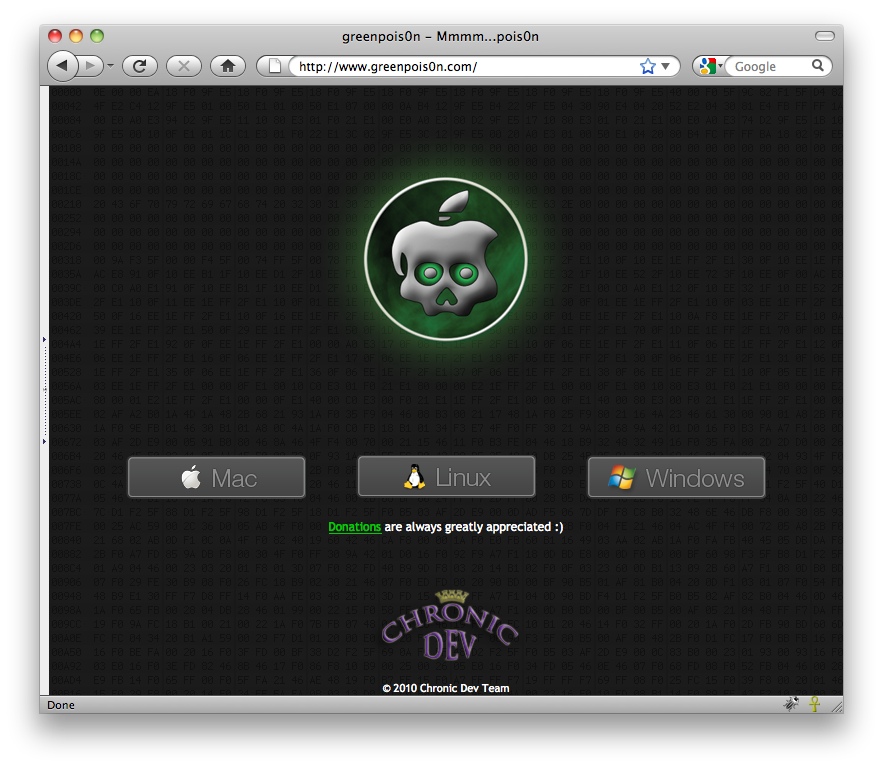
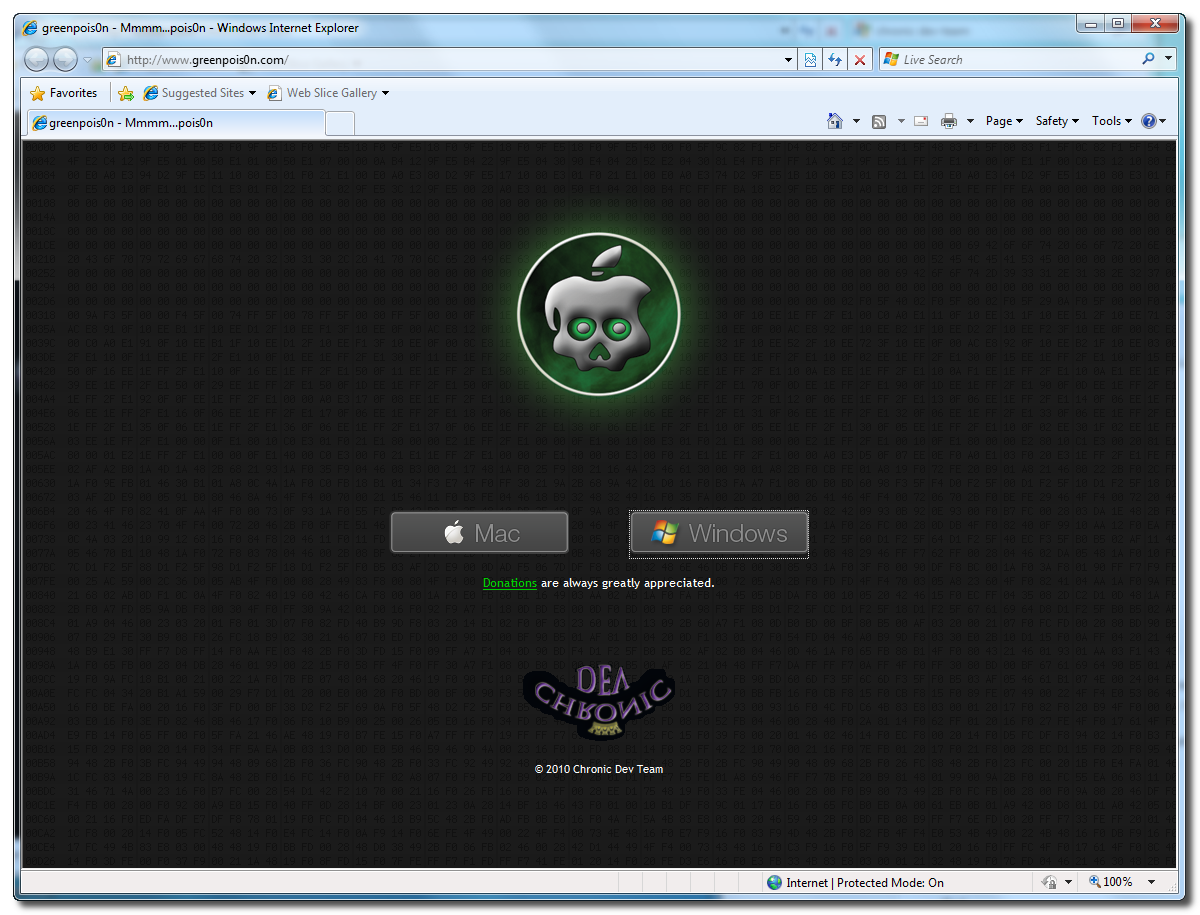
Open your web browser of choice and navigate to http://www.greenpois0n.com. Click the Windows link at the bottom of the screen.

Step Two
When prompted save the download to your desktop


Step Three
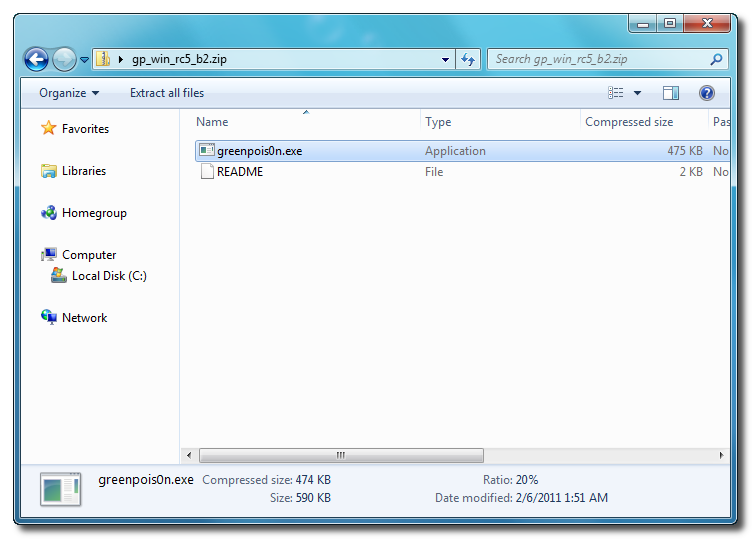
Double click the downloaded gp_win_rc5_b2.zip file then drag the greenpois0n.exe file to the desktop. Doublegreenpois0n.exe from the desktop to launch the application


Step Four
Power off your iPhone then click the large Prepare to Jailbreak (DFU) button
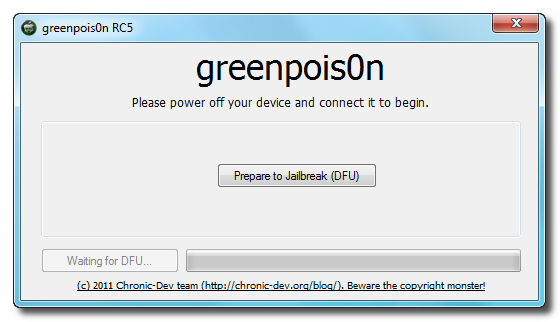

Step Five
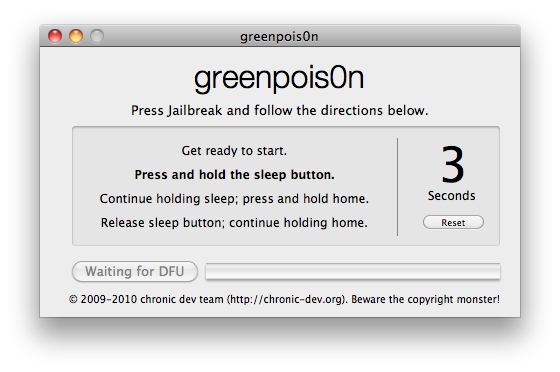
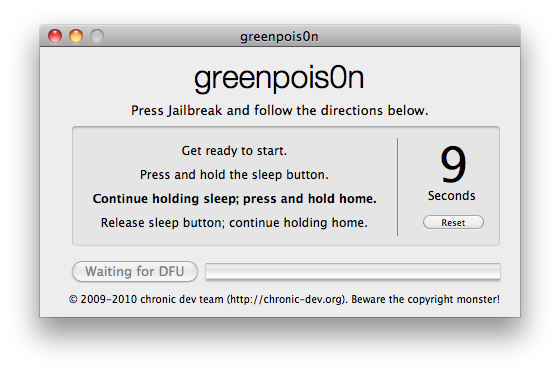
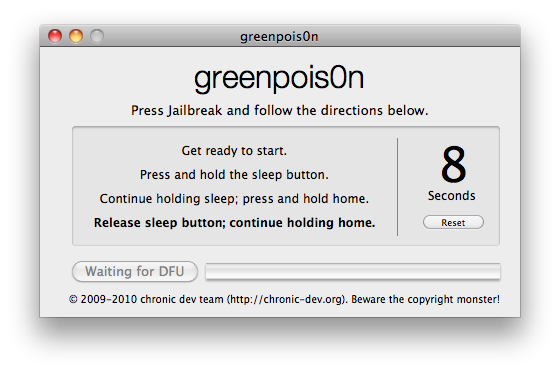
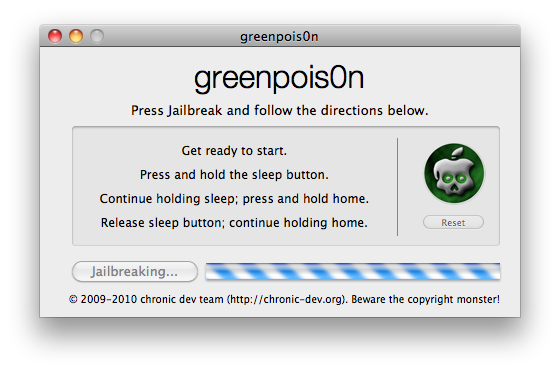
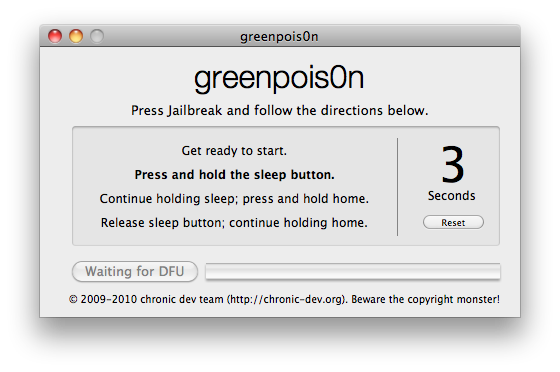
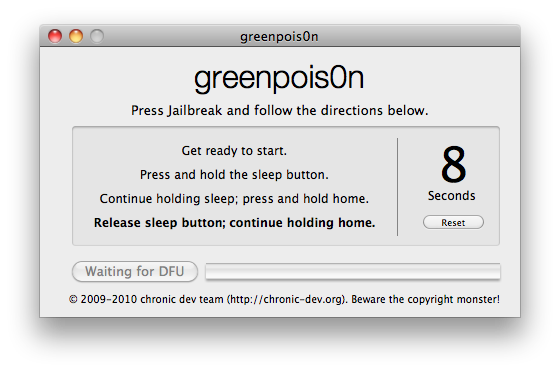
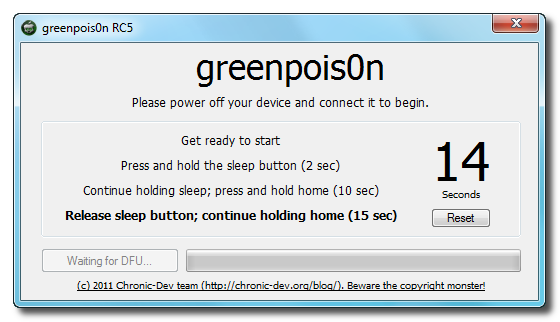
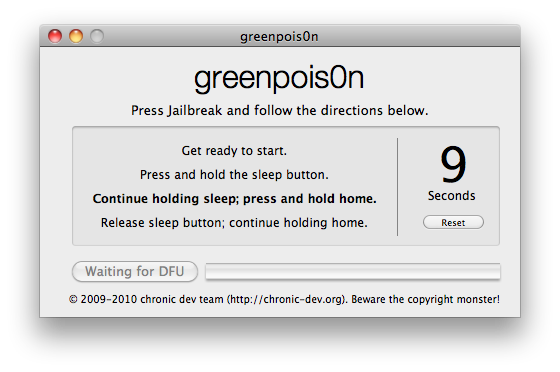
You will now be instructed on how to place your iPhone into DFU mode.
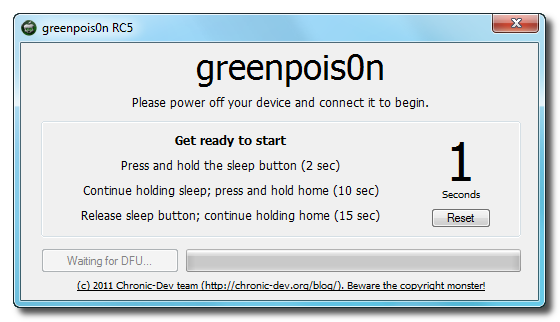

You will be asked to press and hold the sleep button for 2 seconds.
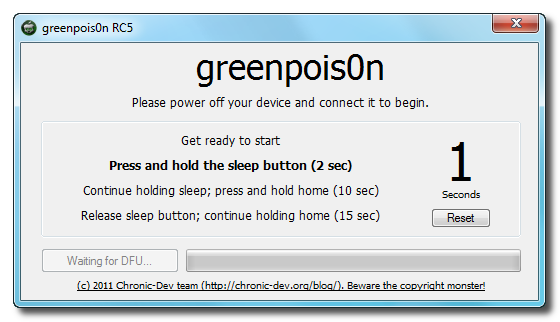

Continue holding sleep; press and hold home for 10 seconds.
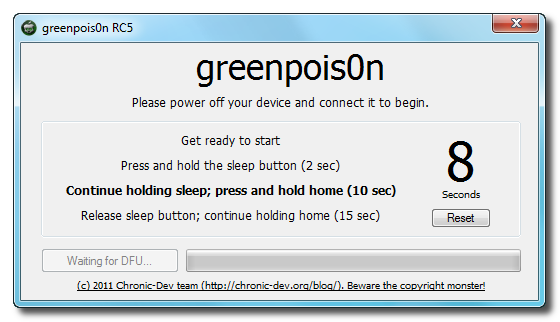

Release sleep button; continue holding home for 15 seconds.

Step Six
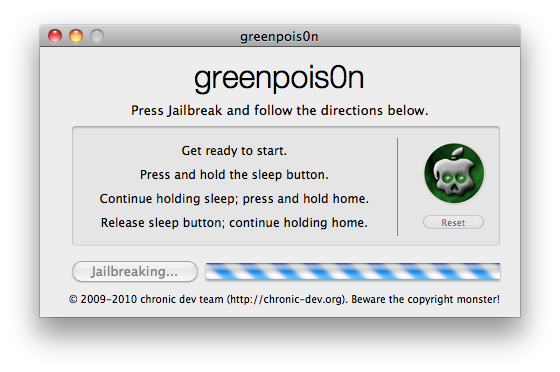
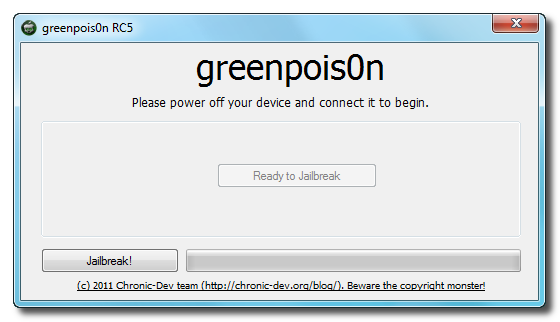
Once your iPhone is successfully in DFU mode you may click the Jailbreak button.

Step Seven
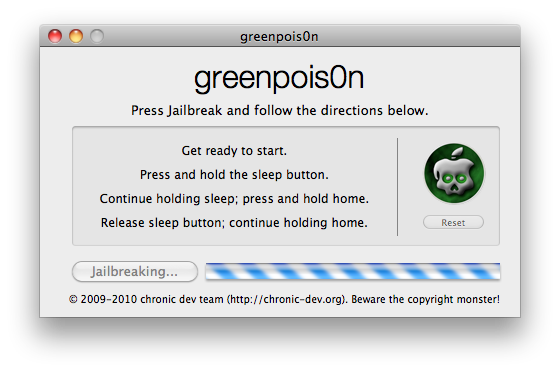
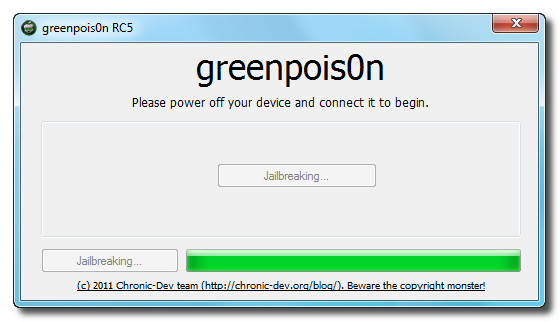
Greenpois0n will now jailbreak your device

Step Eight
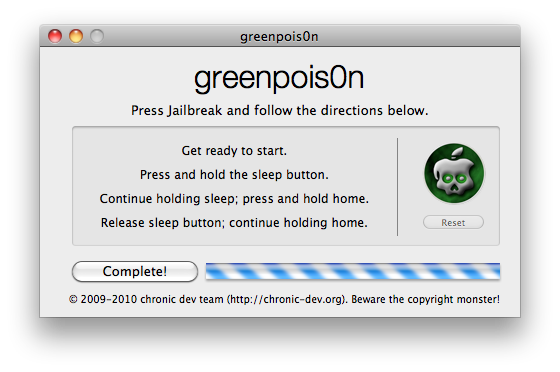
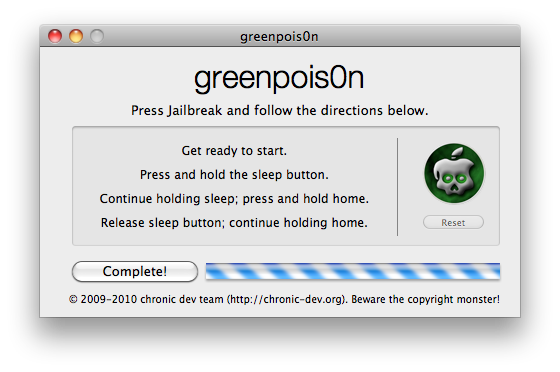
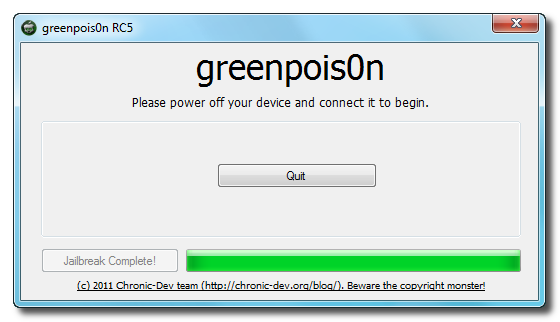
Click the Quit button once the software application has completed.

You'll notice some verbose mode text scrolling on your device.

Step Nine
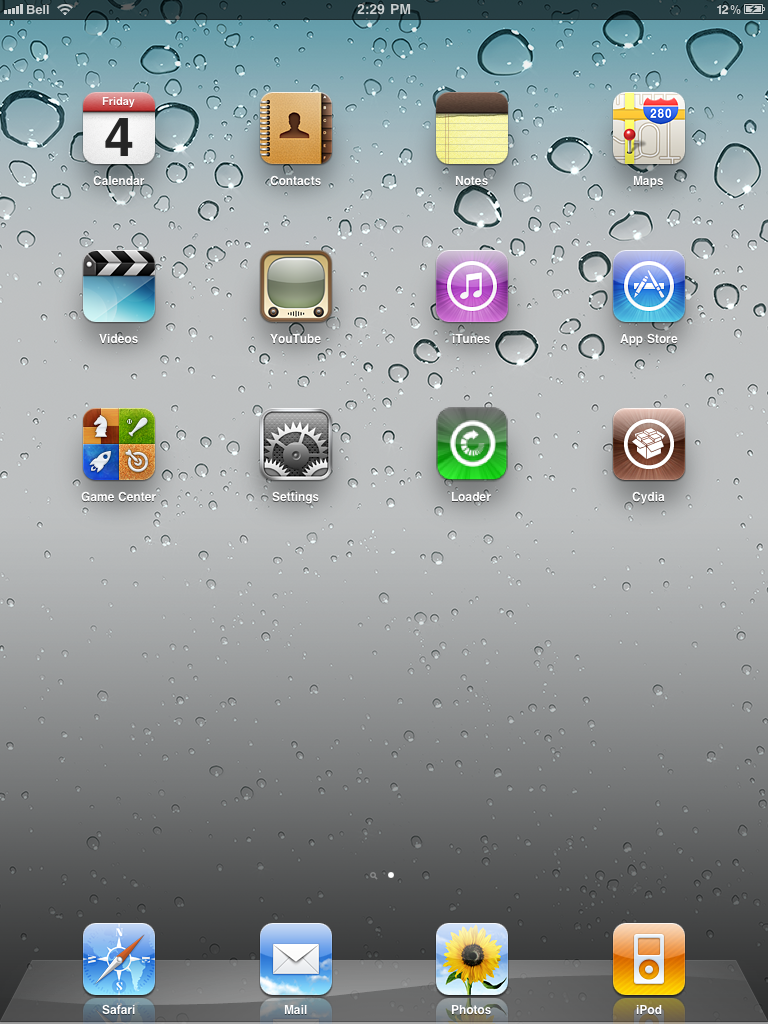
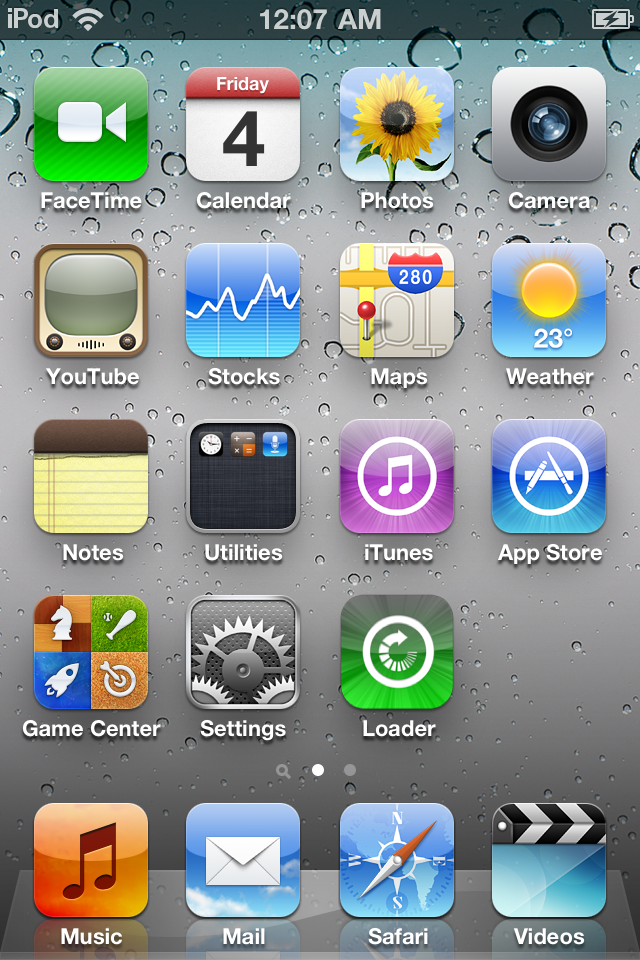
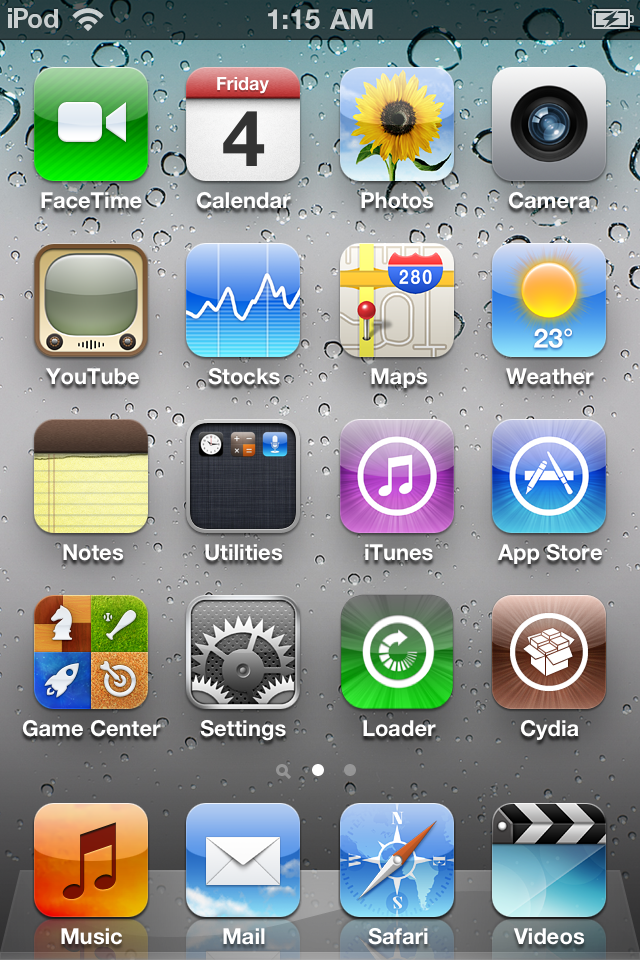
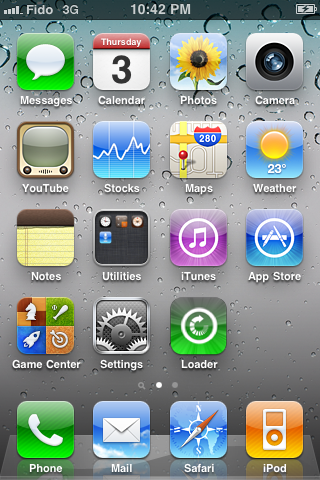
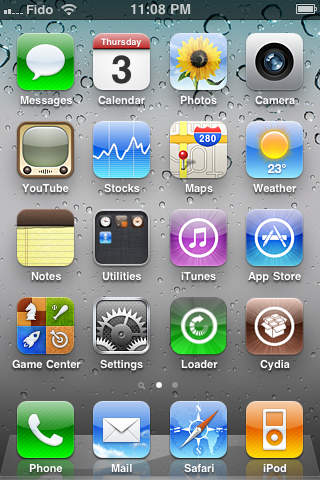
After the iPhone restarts you'll notice a new Loader application on your Springboard. Press to launch it.


Step Ten
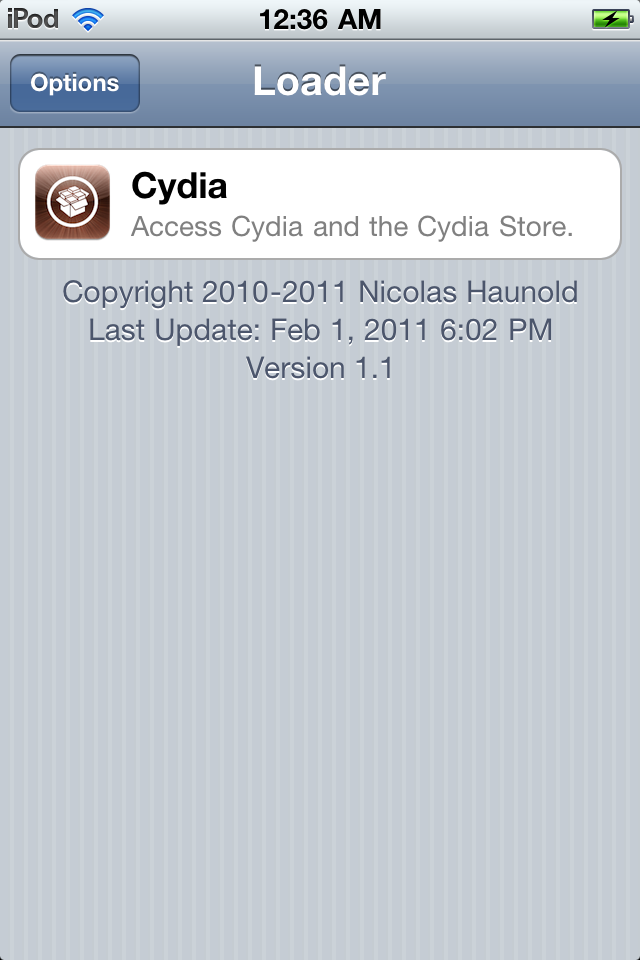
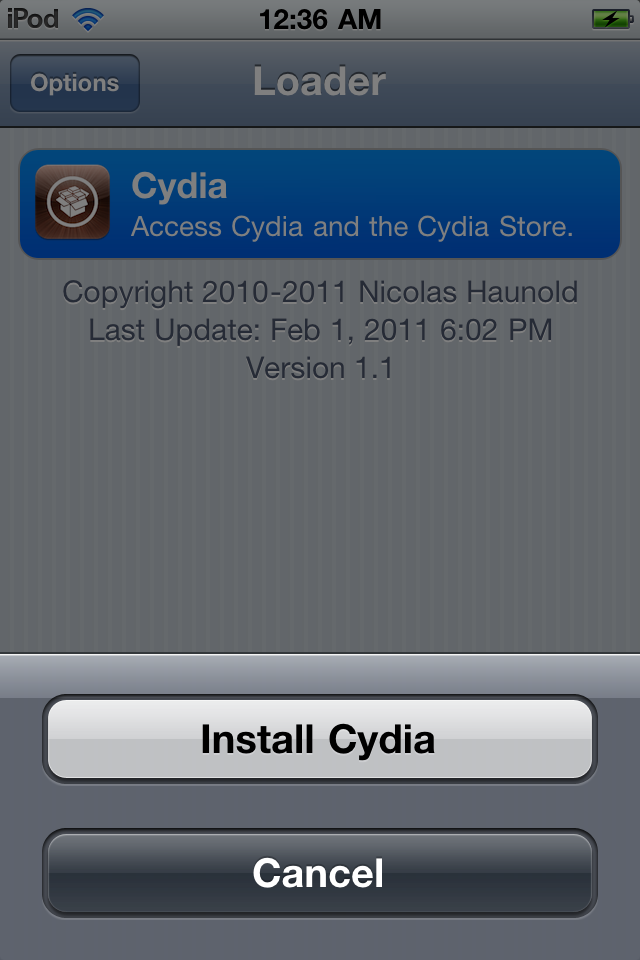
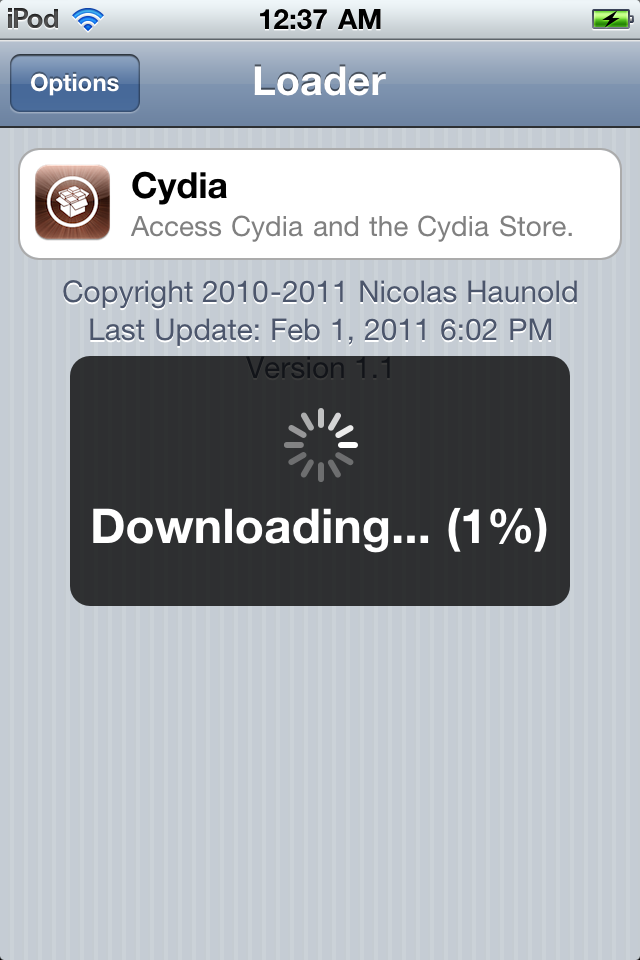
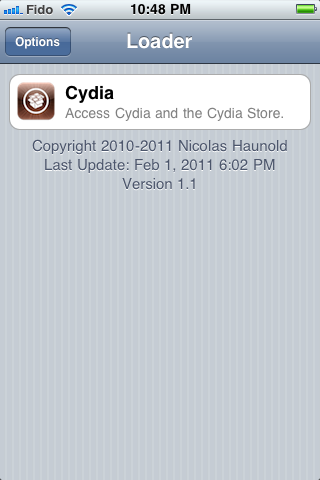
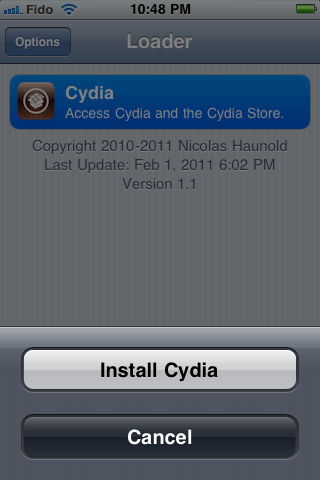
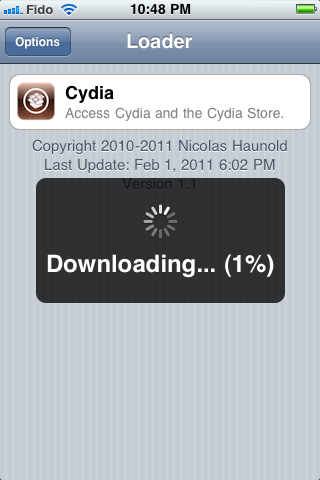
Press to select Cydia then press the large Install Cydia button that appears.


Step Eleven
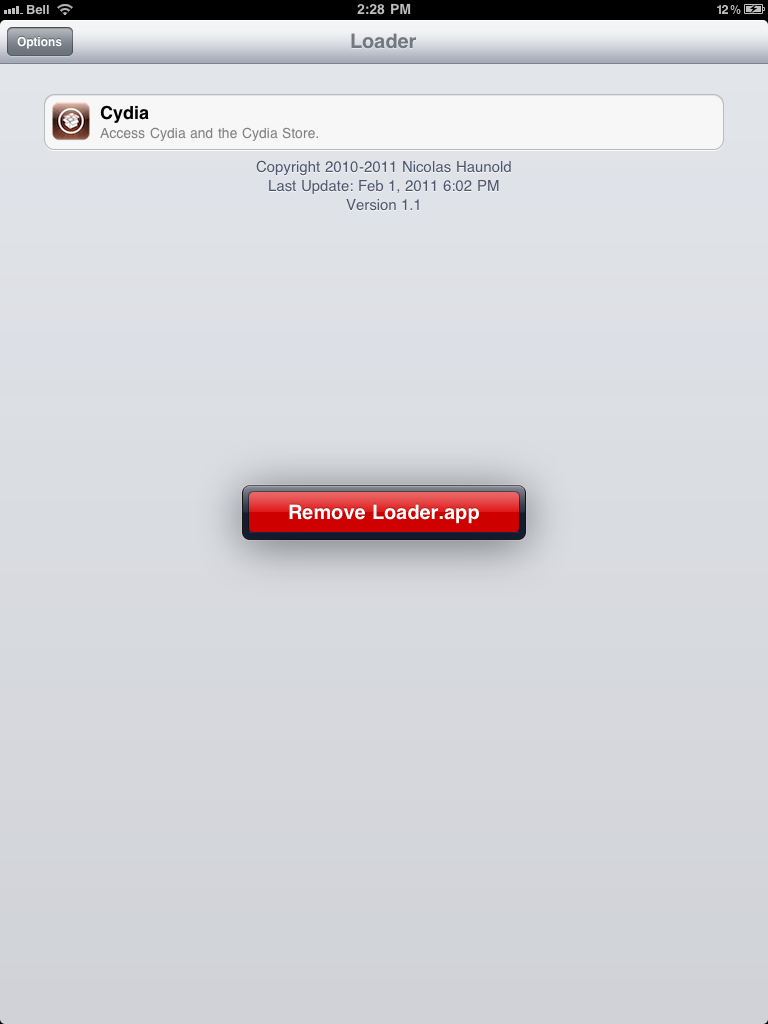
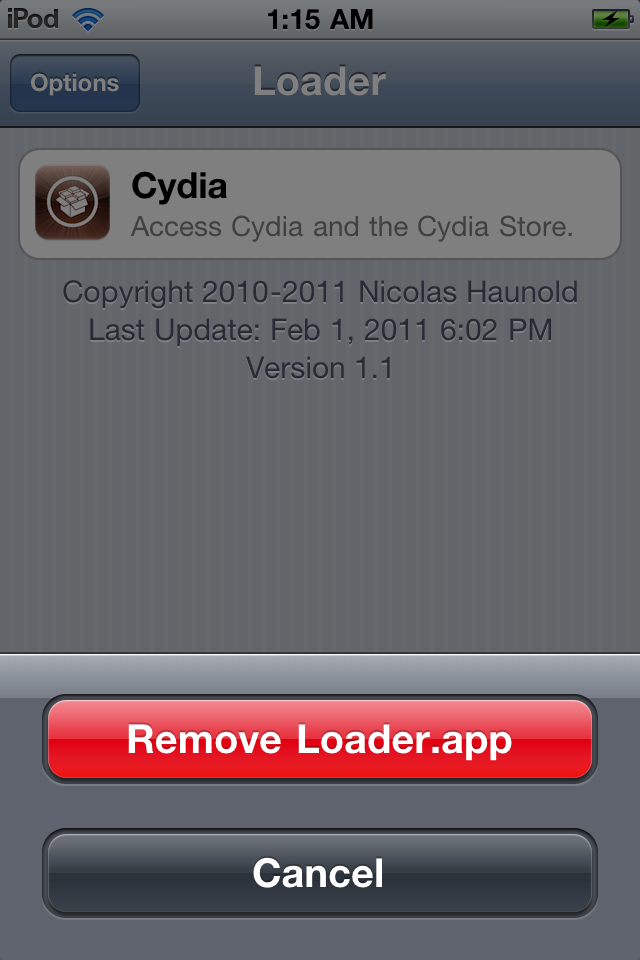
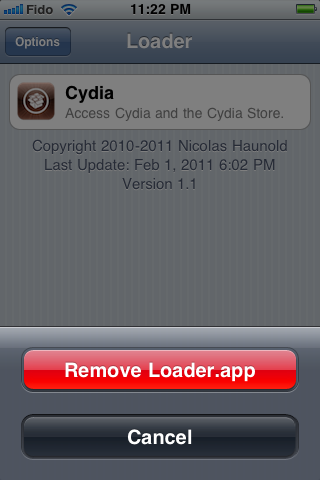
Once Cydia has installed successfully you can remove Loader by pressing the Options button then the large red Remove Loader.app button.


Step Twelve
Restart your iPhone then run Cydia. Let it do all the necessary updates then follow our Unlock tutorial if possible for your device.


***A big thanks goes everyone who made this jailbreak possible.

How to Jailbreak Your iPad Using Greenpois0n (Mac) [4.2.1]


These are instructions on how to jailbreak your iPad using Greenpois0n for Mac. Greenpois0n supports iOS 4.1 and iOS 4.2.1.

Step One
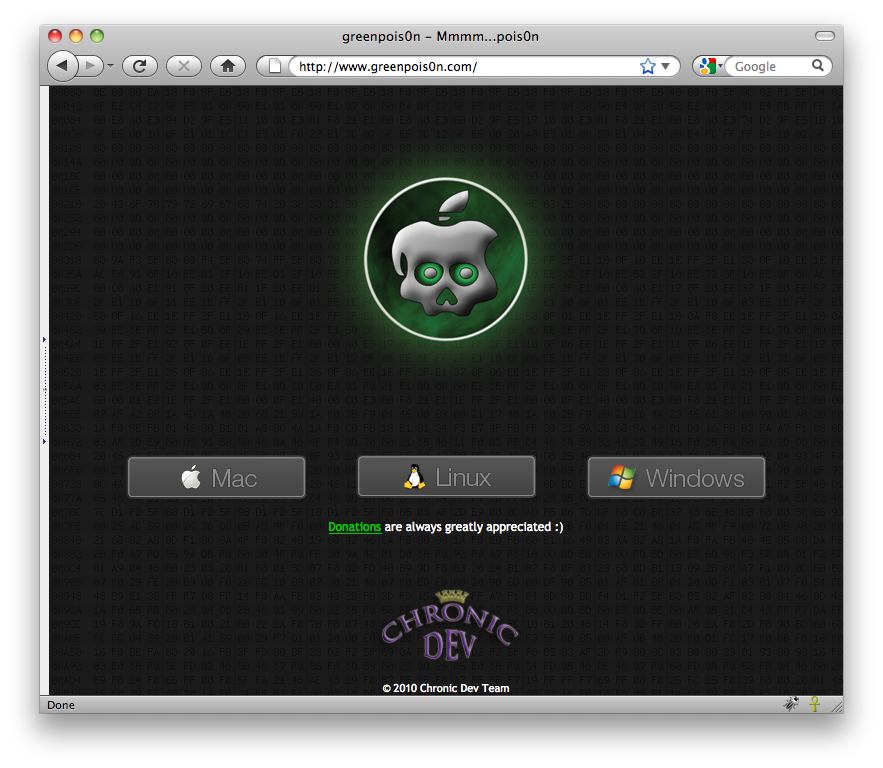
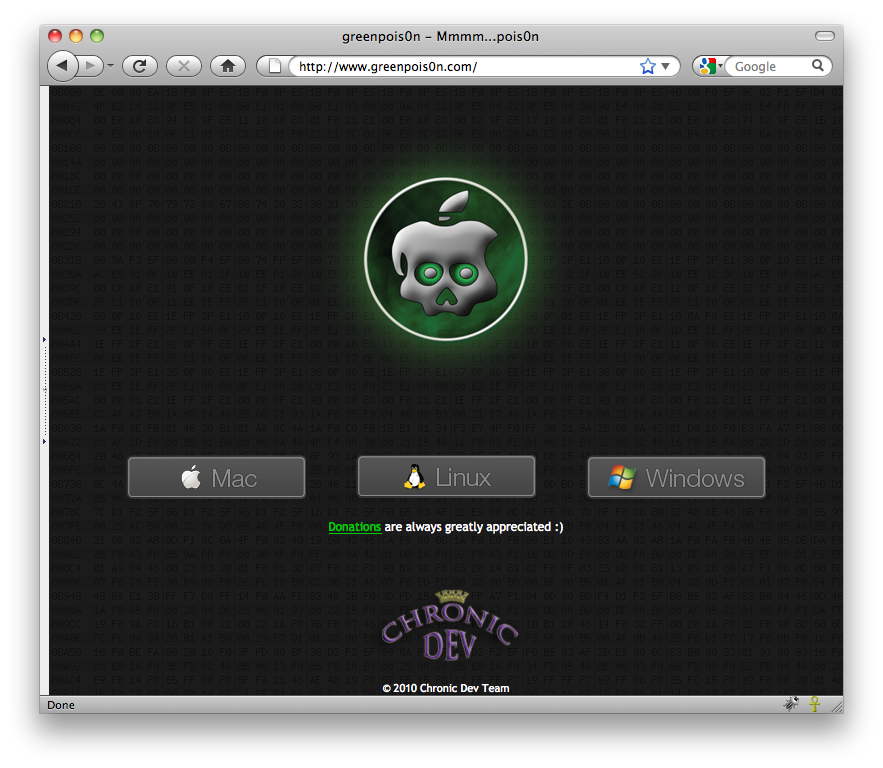
Open your web browser of choice and navigate to http://www.greenpois0n.com. Click the Mac link at the bottom of the screen.


Step Two
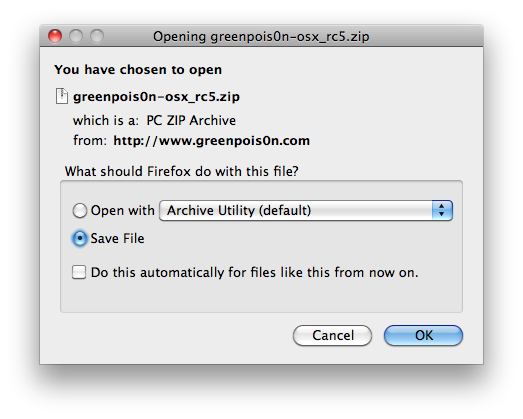
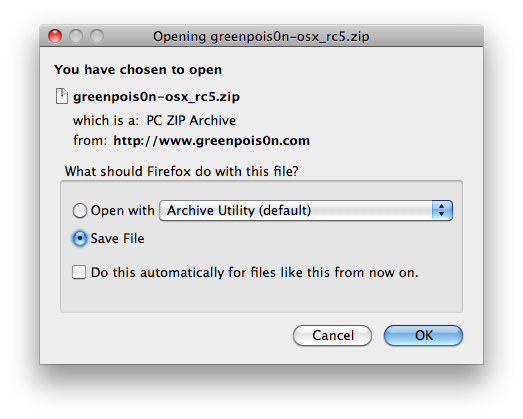
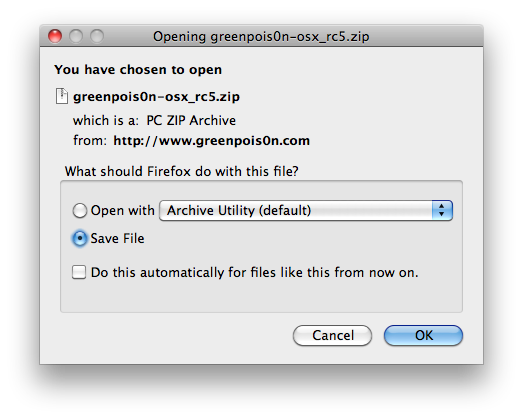
When prompted save the download to your desktop


Step Three
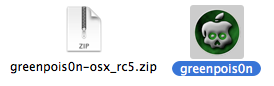
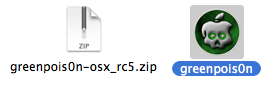
Double click the downloaded greenpois0n-osx_rc5.zip file to extract the archive then double click greenpois0n from the desktop to launch the application


Step Four
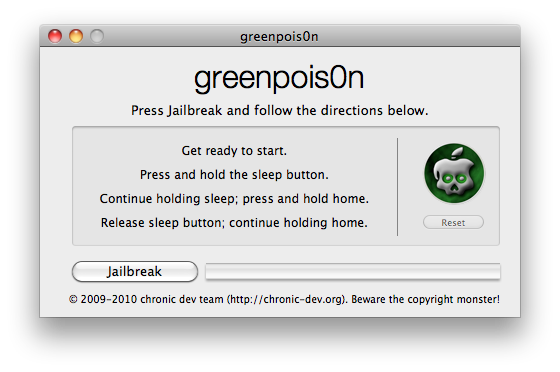
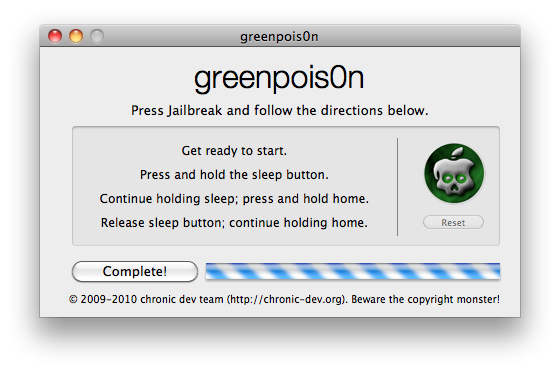
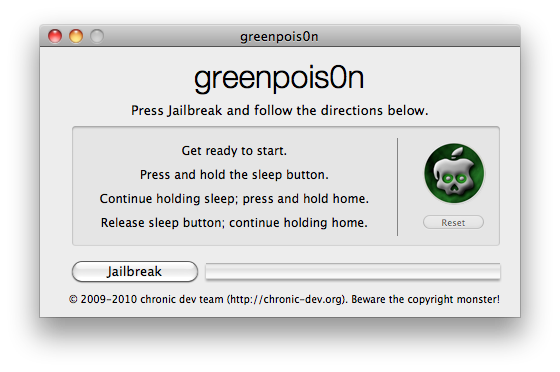
Connect your iPad to the computer, power it off, quit iTunes, then click the large Jailbreak button


Step Five
You will now be instructed on how to place your iPad into DFU mode.

You will be asked to press and hold the sleep button for 3 seconds.


Continue holding sleep; press and hold home for 10 seconds.


Release sleep button; continue holding home for 15 seconds.


Step Six
Once your iPad is successfully in DFU mode the jailbreak will begin.


Step Seven
Click the Complete button once the software application has completed.


You'll notice some verbose mode text scrolling on your device.

Step Eight
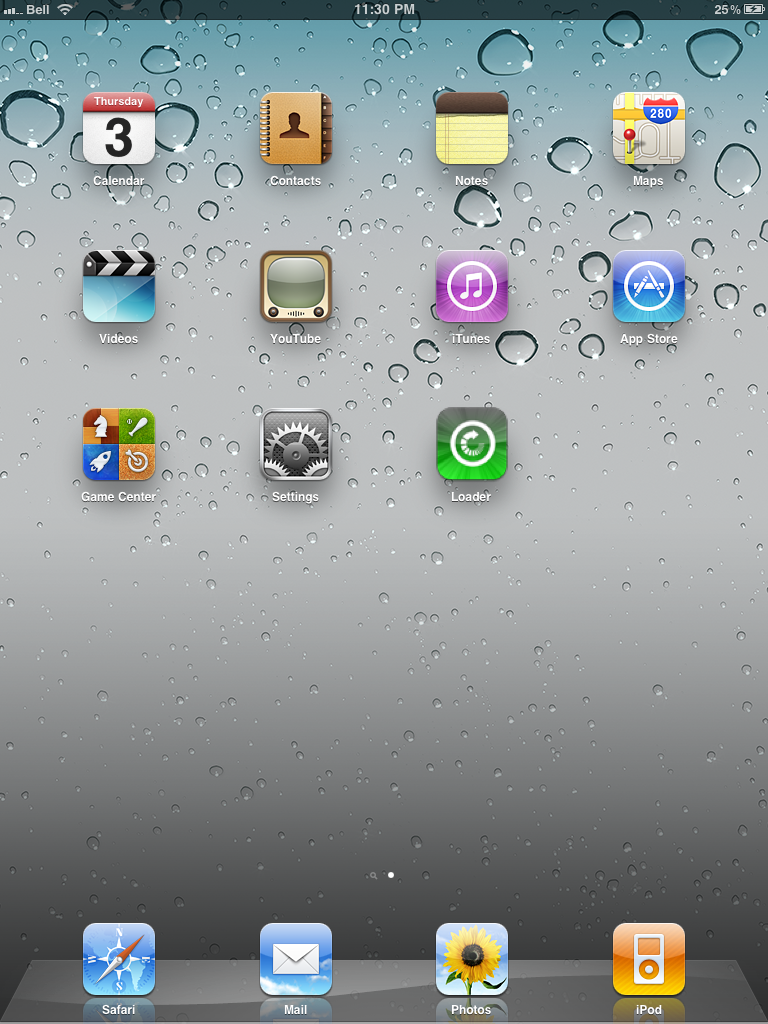
After the iPad restarts you'll have a new Loader application on your Springboard. Press to launch it.


Step Nine
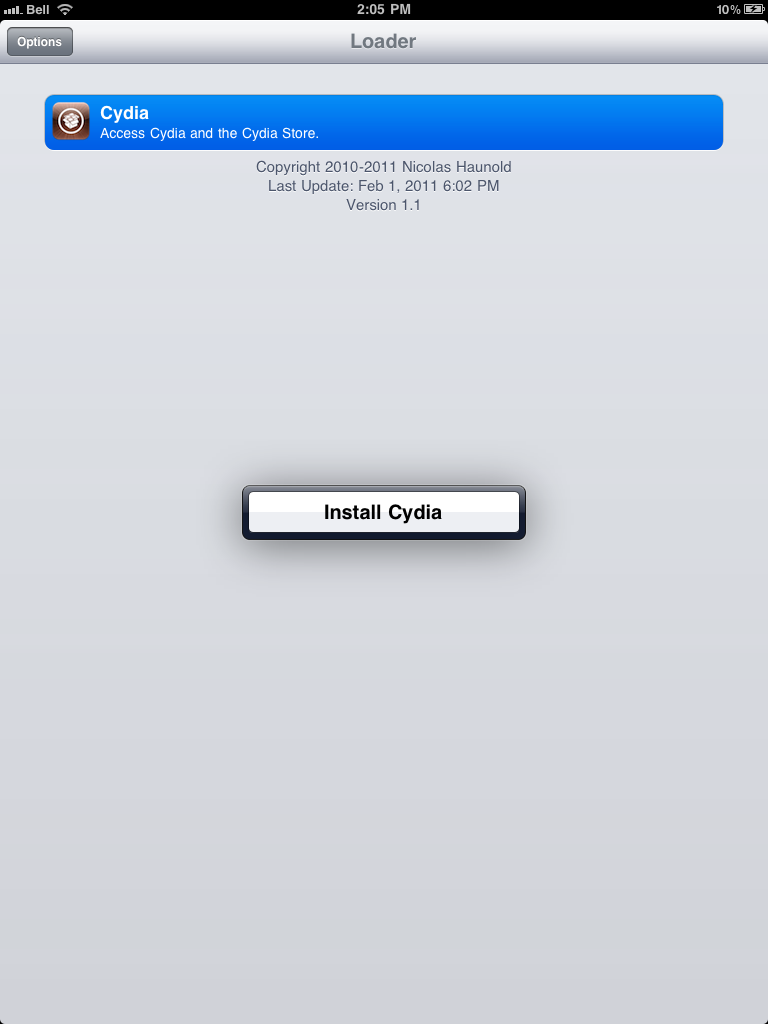
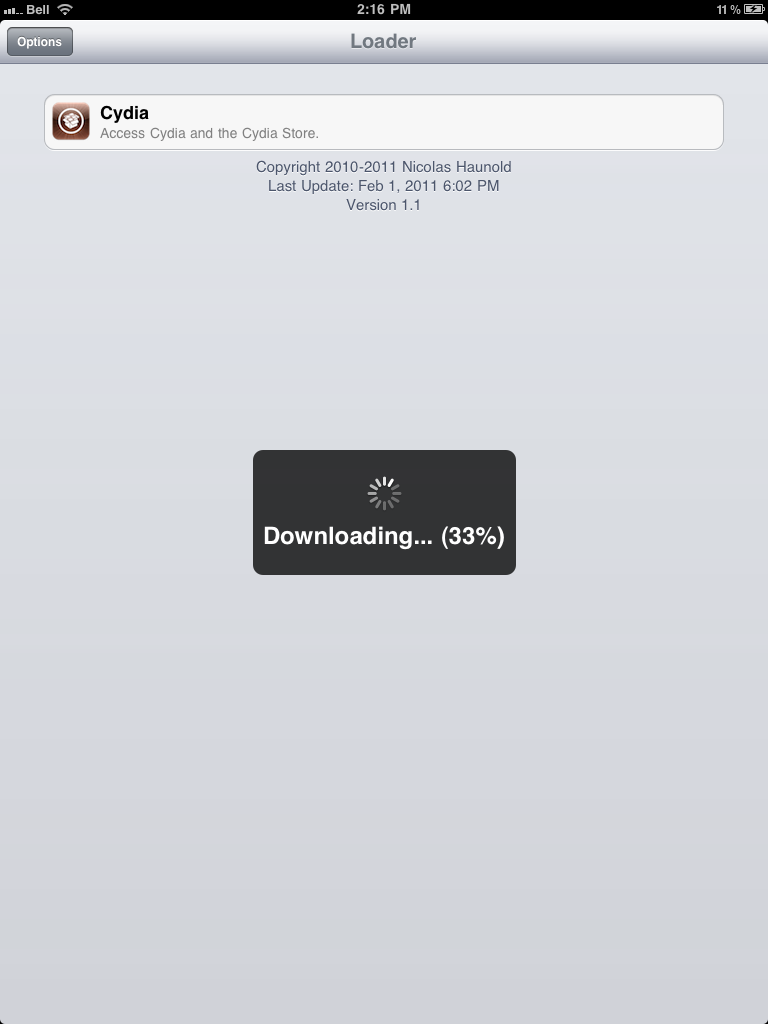
Press to select Cydia then press the large Install Cydia button that appears.


Step Ten
Once Cydia has installed successfully you can remove Loader from your device. Press the Options button then press the Remove Loader.app button.


Step Eleven
Reboot your iPad then run Cydia. Let it do all the necessary updates.


***A big thanks goes everyone who made this jailbreak possible.

How to Jailbreak Your iPod Touch 3G, iPod Touch 4G Using Greenpois0n (Mac)


These are instructions on how to jailbreak your iPod Touch 3G and iPod Touch 4G using Greenpois0n for Mac. Greenpois0n supports iOS 4.1 and iOS 4.2.1 firmware. Use Limera1n if you want to jailbreak iOS 4.0, iOS 4.0.2.

Step One
Open your web browser of choice and navigate to http://www.greenpois0n.com. Click the Mac link at the bottom of the screen.


Step Two
When prompted save the download to your desktop


Step Three
Double click the downloaded greenpois0n-osx_rc5.zip file to extract the archive. Quit iTunes then double click greenpois0n from the desktop to launch the application

Step Four
Connect your iPod to the computer, power it off, then click the large Jailbreak button


Step Five
You will now be instructed on how to place your iPod into DFU mode.

You will be asked to press and hold the sleep button for 3 seconds.


Continue holding sleep; press and hold home for 10 seconds.


Release sleep button; continue holding home for 15 seconds.


Step Six
Once your iPod is successfully in DFU mode the jailbreak will begin.


Step Seven
Click the Complete button once the software application has completed.


You'll notice some verbose mode text scrolling on your device.

Step Eight
After the iPod restarts you'll notice a new Loader application on your Springboard. Press to launch it.


Step Nine
Press to select Cydia then press the large Install Cydia button that appears.


Step Ten
Once Cydia has installed successfully you can remove Loader from your device. Press the Options button then press the Remove Loader.app button.


Step Eleven
Reboot your iPod then run Cydia. Let it do all the necessary updates.


***A big thanks goes everyone who made this jailbreak possible.

Thursday, 3 February 2011

How to Jailbreak Your iPhone 3GS, iPhone 4 Using Greenpois0n (Mac) [4.2.1]


These are instructions on how to jailbreak your iPhone 3GS and iPhone 4 using Greenpois0n for Mac. Greenpois0n has been updated to support the iOS 4.1 and iOS 4.2.1 firmware. Use Limera1n if you want to jailbreak iOS 4.0, iOS 4.0.1, iOS 4.0.2.

Remember: Greenpois0n recommends a clean restore before continuing. Do not update to iOS 4.1 or iOS 4.2.1 if you need the unlock. Ultrasn0w does not support that baseband yet. The only exception is the iPhone 4. You can update to iOS 4.2.1 without upgrading your baseband by using TinyUmbrella. Start TSS Server->Start iTunes->Plug in your iPhone->Restore 4.2.1->Error 1013->Put phone into DFU Mode->Launch Greenpois0n. We will post more detailed instructions shortly.

Step One
Open your web browser of choice and navigate to http://www.greenpois0n.com. Click the Mac link at the bottom of the screen.


Step Two
When prompted save the download to your desktop


Step Three
Double click the downloaded greenpois0n-osx_rc5.zip file to extract the archive then double click greenpois0n from the desktop to launch the application


Step Four
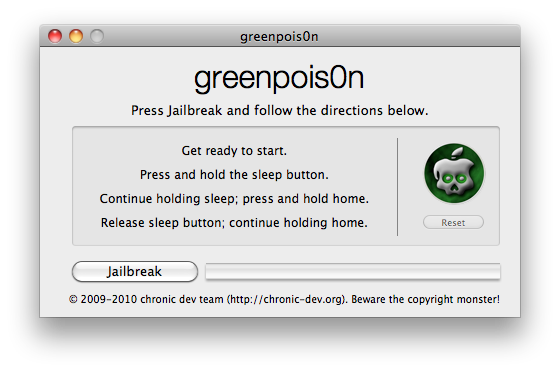
Connect your iPhone to the computer, power it off, then click the large Jailbreak button


Step Five
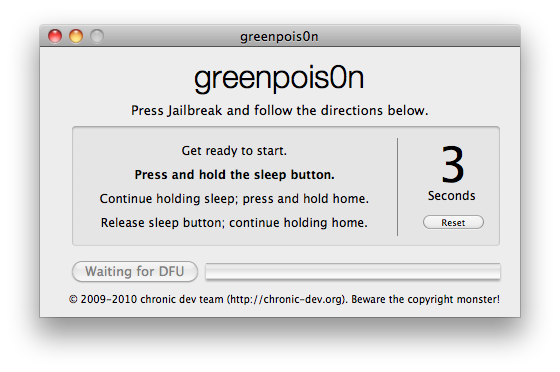
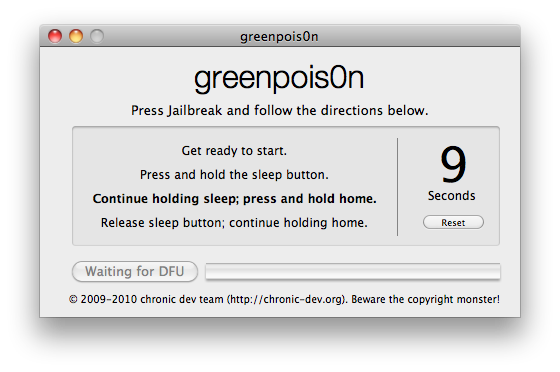
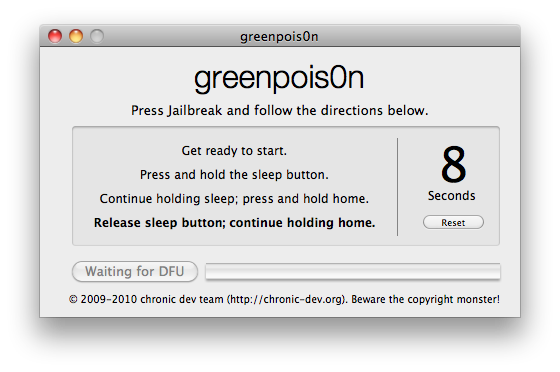
You will now be instructed on how to place your iPhone into DFU mode.

You will be asked to press and hold the sleep button for 3 seconds.


Continue holding sleep; press and hold home for 10 seconds.


Release sleep button; Continue holding the home button. Do not release the Home button at this point!.


Step Six
Once your iPhone is successfully in DFU mode the jailbreak will begin.


Step Seven
Once Greenpois0n informs you that it has completed you can release the Home button. Click the Complete button to close the application.


You'll notice some verbose mode text scrolling on your device.

Step Eight
After the iPhone restarts you'll notice a new Loader application on your Springboard. Press to launch it.


Step Nine
Press to select Cydia then press the large Install Cydia button that appears.


Step Ten
Once Cydia has installed successfully you can remove Loader by pressing the Options button then the large red Remove Loader.app button.


Step Eleven
Restart your iPhone then run Cydia. Let it do all the necessary updates.

***A big thanks goes everyone who made this jailbreak possible.